
Table of Contents
What Is the Safest Apollo Group TV APK Download for Android Method?
The safest method is to search Google Play first, confirm the provider’s current Android instructions, and download only a package designed for the exact device. Temporarily allow one trusted browser or file manager to install unfamiliar apps, inspect the Android prompt, and keep security scanning enabled. After installation, revoke that permission, delete the installer, and enter credentials only inside the expected app screen.
Google warns that apps from unknown sources can put a device and personal information at risk in its official Android app-download guidance. That warning does not mean every sideloaded app is harmful, but it makes verification essential. Apollo Group TV APK download for Android should never come from an anonymous attachment, unexpected pop-up, shortened advertisement, or modified package.
What Is Apollo Group TV APK Download for Android?
An APK is an Android application package containing the code and resources required to install an app. Android can open compatible APK files directly after the user grants the selected source app temporary installation permission. Apollo Group TV APK download for Android refers to that installation package, not a subscription, account, password, or channel list.
The installed app still needs valid service access. Review the available Apollo Group TV subscription information before assuming that an installation problem caused an inactive account. An APK cannot create a subscription, renew an expired plan, or bypass a connection limit.
Why the Android App May Not Appear in Google Play
App availability can vary by country, device category, operating-system version, and current store status. A television build may not appear on a phone, while a mobile build may be unsuitable for Android TV. Search the exact app name and check the publisher before choosing Apollo Group TV APK download for Android.
If an authentic store listing is available for the device, use it because store installation and updates are easier to manage. When no verified listing appears, compare current information through the Apollo Group TV app guide. Avoid relying on an old video whose download page or app version may have changed.
Which Android Devices Can Install the APK?
Compatibility depends on Android version, processor architecture, available storage, screen layout, and package build. Phones and tablets normally need a touch-friendly app, while Android TV and Google TV need a remote-friendly interface. Before starting Apollo Group TV APK download for Android, record the device model, Android version, security patch, and remaining storage.
| Device type | APK support | Preferred build | Main concern |
|---|---|---|---|
| Android phone | Usually | Mobile or universal | Small-screen permissions and storage |
| Android tablet | Usually | Mobile or tablet | Orientation and interface scaling |
| Android TV box | Usually | TV-optimized | Remote navigation and architecture |
| Google TV device | Usually | TV-optimized | Menu labels and available storage |
| Chromebook with Android support | Model-dependent | Play-compatible | Managed-device restrictions |
| iPhone or iPad | No | iOS application | APK files do not install on iOS |
| Roku | No | Roku-supported option | Roku does not accept Android APKs |
Mobile APK vs. Android TV APK
A mobile package may technically install on Android TV but still be difficult to use with a remote. Buttons can be unreachable, orientation may be wrong, and the app may expect touch gestures. Apollo Group TV APK download for Android should use a television build when the provider offers one for Android TV or Google TV.
Apollo Group TV APK Download for Android Checklist
Good preparation prevents most parsing, installation, storage, and login errors. It also gives you a clear reason to stop if the file or device details are inconsistent. Complete these checks before downloading the package.
- Confirm the account: Make sure the subscription is active and credentials are available privately.
- Identify the device: Record its model, Android version, and whether it uses touch or a remote.
- Check free storage: Keep substantially more space available than the listed APK size.
- Verify the source: Obtain current download information through a known provider channel.
Review current Apollo Group TV pricing and plans before making a payment. The Android package installer should never ask for a card number, crypto transfer, or one-time account code. Close any download page that creates payment pressure or impersonates support.
How to Complete Apollo Group TV APK Download for Android
Step 1: Confirm the Apollo Group TV APK Download for Android Source
Begin with the known Apollo Group TV service homepage or an account message you previously verified. Compare the provider identity, current Android instructions, subscription status, and support information before accepting a package. A familiar logo or high search position does not prove that a page is authentic.
Step 2: Search Google Play Before Sideloading
Open Google Play and search the exact service name. Inspect the publisher, description, screenshots, privacy information, update date, and support details before selecting a result. If the authentic app is available and compatible, prefer the store version over Apollo Group TV APK download for Android.
Step 3: Obtain the Current Provider-Confirmed Package
Use the current destination communicated through a known provider route. The broader Apollo Group TV download instructions can help compare device options, but current package confirmation still matters. This guide intentionally avoids a live APK URL that could expire, redirect, or become outdated after publication.
Before opening Apollo Group TV APK download for Android, inspect the complete domain, filename, file type, version, and expected size. Cancel if the package unexpectedly becomes a ZIP archive, executable, browser extension, configuration profile, or bundle requiring an unfamiliar installer. Do not accept repeated redirects through unrelated advertising domains.
Step 4: Allow Installation for One Trusted Source App
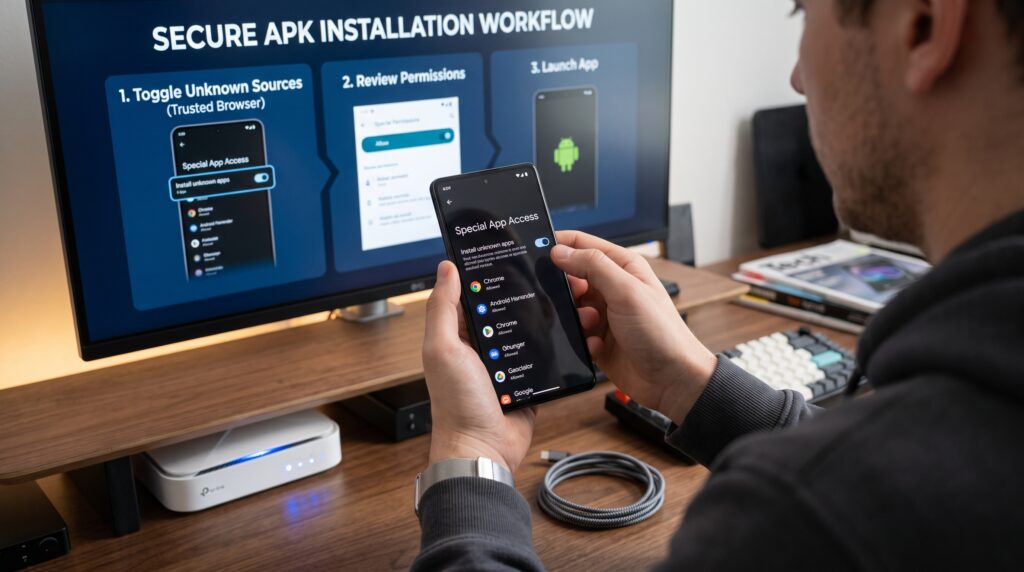
This setting allows the selected app to present an APK installer, but it does not verify the package. Continue checking the filename and source after permission is enabled. Apollo Group TV APK download for Android is safer when installation access remains narrow and temporary.
Step 5: Download and Inspect the Android Prompt
Download the verified package over a stable, private network. Open the notification or Downloads folder and review the Android installation screen before tapping Install. Cancel Apollo Group TV APK download for Android if the system reports harmful behavior, the package name looks unrelated, or the file requests an unexpected installer.
Do not disable Play Protect merely because an online comment says it is required. Google’s official Play Protect safety guidance explains how Android can scan apps and warn about potentially harmful behavior. A clear security warning deserves investigation and a newly verified package, not a bypass.
Step 6: Review App Permissions and Launch
Deny access that is unrelated to normal playback and account functions. Uninstall Apollo Group TV APK download for Android if the application refuses to work without contacts, SMS, call logs, or administrative control that was never explained. Also remove it if it continuously launches ads outside the app.
Step 7: Sign In and Restore Secure Settings
Launch the application from the normal app drawer or television home screen. Enter credentials only into the expected login page, and use the Apollo Group TV login guide if the account is rejected. Never share a password, recovery code, or full account screenshot with someone claiming remote activation is necessary.
After Apollo Group TV APK download for Android works, disable Allow From This Source for the browser or file manager. Delete the APK from Downloads because the installed app does not need the original package to run. Test navigation and authorized playback, then confirm that no unexpected permissions or notifications appeared.
Android Phone vs. Android TV Installation
The security workflow is similar, but navigation and file transfer differ. Phone users can tap browser notifications and settings directly, while Android TV users navigate with a remote and may use a TV-compatible downloader. Apollo Group TV APK download for Android should always match the input method and screen type.
| Installation factor | Android phone or tablet | Android TV or Google TV |
| Primary input | Touchscreen | Remote control |
| Preferred app build | Mobile or universal | Television-optimized |
| File access | Browser or Downloads app | Downloader or TV file manager |
| Settings path | Apps > Special Access | Apps or Security settings |
| Main usability risk | Storage and permissions | Remote navigation and layout |
| Best post-install check | Permissions and notifications | Remote focus, scaling, and playback |
Best Settings After Installation
Keep Android, Android System WebView, and other core system components updated through the normal device process. Review application storage occasionally and clear cache only when performance becomes slow. Clearing app data is more disruptive because it usually removes account details and local preferences.
Protect a Shared Android Device
Do not depend on one application’s filter as the only safeguard on a family device. Device profiles, supervised access, private credentials, and clear household rules work together. Remove or lock any app that cannot be configured appropriately for the people using the device.
How to Fix Apollo Group TV APK Download for Android Errors
| Error or symptom | Likely cause | Safe solution |
| App not installed | Low storage, conflict, or wrong build | Free space, restart, and verify compatibility |
| Problem parsing package | Incomplete or unsupported APK | Delete it and obtain a clean compatible copy |
| Install permission blocked | Source app lacks authorization | Temporarily allow that one browser or file manager |
| Package conflicts with existing app | Signature or version mismatch | Confirm the official update path before uninstalling |
| App opens then closes | OS mismatch or damaged data | Restart, update Android, and verify the build |
| Login rejected | Typo, inactive plan, or device limit | Recheck credentials and subscription status |
| Blank screen | Time, WebView, network, or cache issue | Enable automatic time and update core components |
| Buffering | Weak Wi-Fi or congestion | Test Ethernet or 5 GHz Wi-Fi and pause downloads |
Fix “App Not Installed”
Check Settings > Storage and keep enough space for both the downloaded package and the installed application. Remove old installers, restart the device, and reacquire Apollo Group TV APK download for Android through the verified source. Do not factory-reset the device or use a modified app merely to bypass the message.
Fix a Parsing Package Error
A parsing error often means the download is incomplete or designed for a newer Android version. Delete the file, restart the browser or downloader, and obtain a fresh copy over a stable connection. If Apollo Group TV APK download for Android fails twice, request the correct compatible build instead of visiting random mirrors.
Fix Login or Authorization Errors
Enter the username or email exactly and check for spaces inserted during copying. Confirm the plan is active, automatic date and time are enabled, and the account has not reached its supported connection limit. Apollo Group TV APK download for Android cannot correct expired credentials or an account-side restriction.
Fix Buffering and Blank Screens
Clear app cache before clearing app data because data removal normally signs the account out. Test another authorized item to determine whether the problem affects one stream or everything. Reinstall Apollo Group TV APK download for Android only after storage, time, network, and component updates do not help.
How to Update Apollo Group TV APK Download for Android
Keep the working version installed unless the verified instructions require removal. Install the newer package, reopen the app, and review permissions because updates can introduce additional requests. After updating Apollo Group TV APK download for Android, revoke source permission again and delete the installer.
Common Apollo Group TV APK Download for Android Mistakes
- Selecting the first search advertisement: Sponsored pages can imitate a service or redirect elsewhere.
- Installing a modified APK: Cracked or preactivated files can add unwanted behavior.
- Choosing the wrong build: A phone app may not work correctly with an Android TV remote.
- Disabling Play Protect: Security scanning should remain enabled during sideloading.
- Leaving source permission active: Revoke installation access after setup.
- Granting excessive permissions: Streaming rarely needs contacts, SMS, or device administration.
Another mistake is treating the APK as a subscription. Installation does not activate or renew service, and a package advertised as preloaded deserves suspicion. Use valid account access and consult the Apollo Group TV channel information when checking service availability.
Apollo Group TV APK Download for Android Case Study
The user reviewed permissions, signed in through the normal screen, and revoked installation access for the downloader. After Apollo Group TV APK download for Android was working, the installer was deleted and the app was tested with the remote. The solution came from compatibility and storage checks rather than a security bypass.
Frequently Asked Questions
Is Apollo Group TV APK Download for Android Free?
The installation file may not have a separate fee, but service access generally requires an active subscription. An APK does not create an account or unlock paid access. Be cautious with files marketed as free premium versions.
Can I Install It on Android TV or Google TV?
Yes, when the specific device and operating system support the package. Use a television-optimized build so the remote and layout work correctly. Apollo Group TV APK download for Android should match the target screen and input method.
Why Does Play Protect Display a Warning?
Play Protect can examine unfamiliar applications and warn about potentially harmful behavior. Do not ignore a warning merely to complete installation. Recheck the source, package version, and provider instructions before deciding whether to continue.
Should “Allow From This Source” Stay Enabled?
No, enable it only for the trusted browser or file manager while installing the verified package. Turn it off immediately afterward. This reduces the chance of another app being installed later without deliberate approval.
Final Verdict
Apollo Group TV APK download for Android can be installed safely on a compatible device when the source, build, permissions, and account are verified. The essential process is to search Google Play first, use a provider-confirmed package, allow one source temporarily, keep Play Protect active, and revoke installation access afterward. Device security should remain part of the setup from start to finish.