
Table of Contents
Introduction
An Apollo Group TV APK download can help Android-based devices install the streaming app when it is unavailable in their built-in app store. However, an APK is an installation file, so its source and integrity matter just as much as the installation steps. This guide explains a cautious process for Android phones, tablets, Android TV, Google TV, and compatible Fire TV devices in the United States.
The goal is not simply to get an app onto a screen. A successful Apollo Group TV APK download should come from a provider-confirmed source, match the device, pass security checks, and open without requesting suspicious permissions. You will also learn how to update the app, solve common errors, protect login details, and remove unnecessary installation access afterward.
What Is the Safest Apollo Group TV APK Download Method?
The safest method is to confirm the current app source through the provider or your account communication, download only the device-compatible file, scan it, and temporarily allow installation for one trusted app. Install the package, review permissions, sign in through the normal app screen, and immediately turn off the installation permission. Never rely on a random mirror, social-media attachment, shortened link, or code whose owner and destination you cannot verify.
This cautious approach may take several minutes longer, but it reduces the most important risks. Google warns that apps from unknown sources may threaten a device or personal information in its official Android app-download safety guidance. An Apollo Group TV APK download should therefore be treated like software installation, not like opening an ordinary video link.
What Is an Apollo Group TV APK?
APK means Android Package Kit, the standard package format used to distribute and install many Android applications. The file contains the app code, resources, and a digital signature that Android evaluates during installation. An Apollo Group TV APK download is useful only on a compatible Android-based operating system and is not an iPhone, iPad, Roku, Windows, or macOS installer.
An APK does not include a paid account or automatically create service access. Users generally need an active Apollo Group TV subscription setup and the correct credentials before the app can load an account. Treat anyone promising a “free unlocked APK” as a serious warning sign because modified packages may be unsafe or unauthorized.
Why the App May Not Appear in a Device Store
If the official store offers the authentic app, the store version is usually the simpler choice because updates are easier to manage. If it does not appear, consult the provider’s current Apollo Group TV app information rather than copying a URL from an anonymous post. Availability and installation instructions can change, so an old tutorial may point to an obsolete build.
Which Devices Support Apollo Group TV APK Download?
| Device | APK support | Best first action | Important note |
|---|---|---|---|
| Android phone or tablet | Usually | Search Google Play | Settings names vary by manufacturer |
| Android TV or Google TV | Usually | Search the TV’s Play Store | Use a TV-optimized build if offered |
| Compatible Fire TV device | Often | Search Amazon Appstore | Fire TV models and software can differ |
| iPhone or iPad | No | Use an iOS-compatible option | APK files cannot install on iOS |
| Roku | No | Use a supported Roku method | Roku does not install Android APKs |
Android TV, Google TV, and Fire TV Differences
Fire TV owners should also verify that their exact model accepts the required Android package. New hardware and operating-system changes can alter compatibility, so model-specific confirmation matters more than the name “Fire TV.” The dedicated Firestick APK installation guide can provide context, but any current on-device warning should take priority.
Apollo Group TV APK Download Checklist
Prepare the device before downloading anything. This prevents many “app not installed,” parsing, storage, and login errors that users mistakenly blame on the package. A careful Apollo Group TV APK download begins with the following checklist.
- Confirm the source: Obtain the current destination through the provider’s official communication or authenticated account area.
- Identify the device: Write down the model, OS version, and whether it uses a TV or mobile interface.
- Check storage: Keep substantially more free space than the APK’s listed size.
- Protect credentials: Use a unique password and never paste it into a downloader, browser pop-up, or unofficial form.
- Keep scanning enabled: Leave Google Play Protect or the device’s built-in app security active.
Compare the subscription information in your account with the published Apollo Group TV pricing and plan details before paying or renewing. Unexpected cryptocurrency demands, pressure messages, and look-alike checkout pages deserve extra scrutiny. The APK installer should never request payment-card information during package installation.
How to Complete Apollo Group TV APK Download Safely
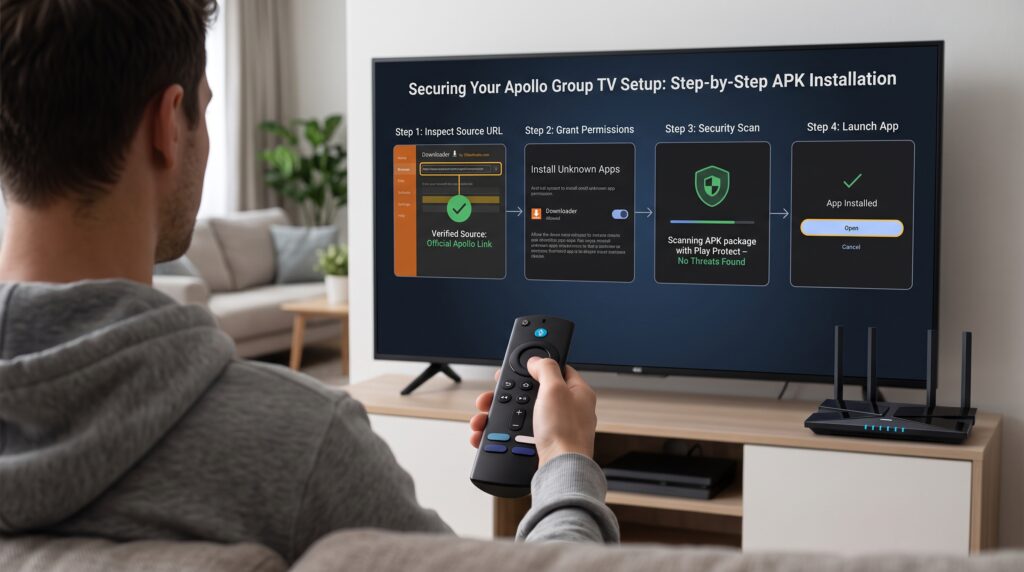
These seven steps prioritize source validation and narrow permissions. Menu wording changes across Android versions, but the underlying principle remains consistent: authorize only the app that opens the verified package, then revoke that authorization. Stop if the source, filename, permissions, or login flow differs unexpectedly.
Step 1: Confirm the Apollo Group TV APK Download Source
Begin at the known Apollo Group TV service homepage or through an account message you previously verified. Confirm that the service information, support identity, and subscription status are consistent before requesting an app file. Do not trust sponsored search ads or domains that merely add words such as “official,” “premium,” or “free.”
Step 2: Prepare the Device for Apollo Group TV APK Download
Open the device’s About screen and record its operating-system version. Compare that information with the requirements supplied alongside the provider-confirmed APK, including whether a TV-specific build exists. Avoid guessing between multiple packages named for different processor types because an incompatible selection may not install or launch.
Step 3: Search the Store Before Apollo Group TV APK Download
Search Google Play, the television’s Play Store, or the Amazon Appstore using the exact service name. Review the publisher, screenshots, privacy information, and listing details rather than selecting the first similar icon. If an authentic store listing is available, prefer it over an Apollo Group TV APK download because store installation usually simplifies scanning and updates.
Step 4: Inspect the Apollo Group TV APK Download File
If sideloading is necessary, use the current destination communicated by the provider. This article intentionally does not publish a direct APK file URL or a Downloader code because those destinations can change, expire, or be copied by unsafe sites. The broader Apollo Group TV download guide can explain platform choices without replacing current source confirmation.
Before opening the Apollo Group TV APK download, inspect the complete filename, extension, source domain, stated version, and file size. An Android package should end in .apk, but that extension alone proves nothing about safety. Cancel if the download unexpectedly becomes a ZIP archive, executable file, browser extension, configuration profile, or multiple-package bundle you were not told to expect.
Step 5: Authorize the Apollo Group TV APK Download Installer
Modern Android commonly grants “install unknown apps” permission to a specific source app, such as a browser or file manager. Open Settings, locate Apps or Security, find Special app access or Install unknown apps, and permit only the app that will open the verified file. The labels vary, so use the device’s settings search if the menu is not obvious.
Step 6: Scan the Apollo Group TV APK Download Package
Open the downloaded package and read the Android installation prompt fully. Keep security scanning enabled, and cancel if the system identifies the app as harmful or blocks it for a clear safety reason. Google’s official Play Protect guidance explains how Android can scan apps and warn about potentially harmful behavior.
Step 7: Finish Apollo Group TV APK Download and Sign In
Launch the app from the device’s normal application list, not from a browser advertisement. Enter credentials only into the expected sign-in screen, and consult the Apollo Group TV login instructions if the account is not recognized. Never email, post, or screenshot a password, recovery code, or full subscription detail.
Apollo Group TV APK Download vs. a Downloader Code
| Factor | Provider-confirmed APK link | Short Downloader code |
| Destination visibility | Often visible before download | May be hidden until resolved |
| Expiration risk | Possible | Often higher |
| Typing convenience | Lower on TV remotes | Higher |
| Verification need | Essential | Essential plus destination review |
| Best practice | Confirm domain and file details | Resolve, inspect, then verify everything |
Do not enter a trending code simply because many comments repeat it. Codes can be mistyped, reassigned, or used to disguise unrelated downloads, and screenshots may be outdated. A secure Apollo Group TV APK download requires the same checks regardless of how few remote-control clicks it takes.
How Do You Fix Apollo Group TV APK Download Errors?
Most failures come from compatibility, storage, package conflicts, incomplete downloads, or blocked permissions. Read the exact on-screen message before changing settings, because random fixes can create additional problems. Use the table below to isolate the cause with the least invasive action.
| Error or symptom | Likely cause | Safe fix |
| “App not installed” | Conflict, low space, or incompatible build | Free space, restart, and verify the correct package |
| “Problem parsing package” | Corrupt, incomplete, or unsupported APK | Delete it and reacquire the verified compatible file |
| Installation button unavailable | Source app lacks permission | Grant temporary permission to that one source app |
| Package conflicts with existing app | Signature or version mismatch | Confirm update instructions before removing anything |
| App opens then closes | OS incompatibility or damaged data | Restart, update the OS, and use the supported build |
| Login rejected | Typo, expired plan, or account issue | Recheck credentials and subscription status |
| Blank screen | Network, DNS, time, or app-data problem | Check automatic time, restart router, then relaunch |
| Repeated buffering | Wi-Fi congestion or server route issue | Test Ethernet or 5 GHz Wi-Fi and reduce other traffic |
Fix “App Not Installed” Without Weakening Security
First delete the incomplete installer, restart the device, and confirm available storage. Reacquire the file only from the verified source, then make sure it matches the operating system and device type. Do not disable Play Protect, factory-reset the device, or install a “modded” alternative merely to bypass the message.
Fix Parsing and Corrupt-Package Errors
A parsing error often means the Apollo Group TV APK download was interrupted or built for a newer Android version. Compare the downloaded file size with the provider’s current listing if one is supplied, then download again over a stable network. If the error repeats, stop and request the correct compatible build rather than downloading from a mirror.
Fix Login and Authorization Problems
Confirm the username or email exactly, including capitalization and accidental spaces. Check whether the subscription is active, whether the account has reached its allowed device limit, and whether automatic date and time are enabled. A successful Apollo Group TV APK download cannot correct an expired plan or an incorrect account record.
How to Update Apollo Group TV APK Download Safely
Sideloaded apps may not update automatically through a store. When an update notice appears, verify it through the provider’s known channel rather than tapping a pop-up that opens an unfamiliar domain. A new Apollo Group TV APK download should have a newer version number and a source consistent with the package already trusted.
Common Apollo Group TV APK Download Mistakes
- Choosing the first search result: Ads and imitation pages may appear above the destination you expect.
- Turning off security permanently: Temporary source permission should be revoked immediately after installation.
- Ignoring package warnings: A warning should trigger investigation, not a search for a bypass.
- Granting excessive permissions: Streaming does not normally justify control of contacts, messages, or accessibility services.
- Installing every update pop-up: Verify version announcements through a known provider channel first.
Case Study: A Clean Fire TV Installation
The user confirmed the current build through the provider, removed unused downloads, restarted the device, and followed the official update path for the existing app. Installation permission was granted only to the selected downloader, then revoked after the verified Apollo Group TV APK download finished. The user deleted the installer, reviewed permissions, and tested playback without sharing credentials or using remote-access support.
Frequently Asked Questions
Is Apollo Group TV APK Download Free?
The APK file may be supplied without a separate installer fee, but the app generally requires valid service access. Downloading a package does not create a paid subscription or unlock an account. Review current plans through a verified source and be suspicious of “free premium” modifications.
Do I Need a Downloader Code?
No, a code is only one possible shortcut to a destination and is not the app itself. You can use a provider-confirmed download route or an official store when available. If a code is offered, verify the resolved destination before accepting any file.
Why Does Play Protect Warn About the APK?
Play Protect may inspect apps installed outside Google Play and can warn about unfamiliar or harmful behavior. Do not suppress a warning merely to finish the Apollo Group TV APK download. Confirm the source and seek an updated authentic package; uninstall it if safety remains uncertain.
Should I Leave “Install Unknown Apps” Enabled?
No, grant the permission only to the specific trusted source app for the time required. Turn it off as soon as installation finishes. This reduces the chance that a browser or file manager can install another package later without deliberate approval.
Final Apollo Group TV APK Download Checklist
Use this short checklist whenever you install or update the app. It keeps the workflow consistent even when menu names or version numbers change. A secure Apollo Group TV APK download is a process, not a particular code.
- Confirm the service, account, and current provider channel.
- Identify the exact device model, OS version, and free storage.
- Search the official device store before sideloading.
- Verify the source, filename, version, and expected file type.
- Keep Play Protect or built-in app scanning enabled.
- Allow installation for only one trusted source app.
- Review permissions and cancel on unexplained requests.
- Sign in only through the normal app screen.
- Revoke installation access and delete the installer.
- Test playback, updates, and account security regularly.
Key Takeaways
- An APK is an Android installation package, not a subscription or account.
- The device’s official store is the preferred first choice when the authentic app is available.
- Random mirrors, shortened links, modified packages, and unverified codes create avoidable risk.
- Temporary installation permission should be narrow and disabled immediately afterward.
- Play Protect, permission reviews, strong passwords, and routine updates improve security.
- Users should access only services and programming they are authorized to view.