
Table of Contents
What Is the Best Way to Use Apollo Group TV for iPhone?
The best method is to search the App Store for an authentic compatible app and verify its publisher before downloading. If no supported iPhone app appears, use the provider-confirmed web player in Safari rather than attempting to install an Android APK. Keep iOS updated, enter credentials only on the expected login page, and use AirPlay when supported for a larger screen.
Apple’s official iPhone app-download instructions direct users to obtain apps through the App Store. Search results, third-party stores, and pop-up profiles should not replace publisher verification. Apollo Group TV for iPhone setup should never require disabling Apple security, jailbreaking the device, or sharing an Apple Account password.
Does Apollo Group TV Work on iPhone?
Apollo Group TV for iPhone access may work through an authentic iOS app, a compatible IPTV player, or a supported Safari web player. Availability can change by region, app listing, device model, and service configuration, so users should confirm the current method. The provider’s Apollo Group TV app information can help compare supported platforms without proving that every similarly named App Store result is official.
An active account is separate from the application used to view it. Users need valid credentials and an appropriate Apollo Group TV subscription before login can succeed. Installing a player does not create service access or extend an expired plan.
Why an Android APK Cannot Install on iPhone
APK is the package format used for Android applications, while iOS uses Apple-signed apps distributed through supported Apple channels. Renaming an APK, uploading it to a converter, or opening it in Files will not produce a working iPhone app. Apollo Group TV for iPhone requires an iPhone-compatible method instead of an Android installer.
Apollo Group TV for iPhone Requirements
A reliable setup begins with a supported iPhone, current iOS software, sufficient storage, and a stable internet connection. The account must be active, and the chosen app or browser must support the provider’s login format. Review these requirements before troubleshooting Apollo Group TV for iPhone.
| Requirement | Recommended check | Why it matters |
|---|---|---|
| iOS version | Settings > General > Software Update | Current software improves compatibility and security |
| Free storage | Settings > General > iPhone Storage | Low storage can disrupt updates and app performance |
| Network | Stable home Wi-Fi | Streaming needs consistent bandwidth and low interruption |
| App source | Verified App Store publisher | Similar names may belong to unrelated applications |
| Browser | Current Safari | Web players depend on cookies, JavaScript, and media support |
| Account | Active plan and correct credentials | Installation does not activate service access |
| AirPlay target | Compatible TV or Apple TV | Both devices usually need the same Wi-Fi network |
Check current Apollo Group TV pricing and plans before renewing or changing service. An App Store player may also have its own separate purchase or subscription, which is not the same as the television service. Read each payment screen carefully so you understand which company and feature the charge covers.
Which iPhone Models Are Suitable?
Most recent iPhones with a supported iOS version can handle modern browser playback and compatible applications. Older models may have limited software support, less memory, or weaker Wi-Fi performance. Apollo Group TV for iPhone may therefore behave differently on two devices even when both use the same account.
How to Set Up Apollo Group TV for iPhone
Step 1: Verify the Apollo Group TV for iPhone Account
Begin at the known Apollo Group TV service homepage or an account message you already recognize. Confirm the subscription status, login format, supported player method, and number of allowed connections. Avoid search advertisements and social messages that imitate the brand or promise free preactivated access.
Step 2: Search the App Store Carefully
Open the App Store, tap Search, and enter the exact application or player name supplied by the provider. Compare the developer, icon, description, privacy information, support site, update history, and device compatibility. If the identity does not match, do not install the result merely because its title contains familiar keywords.
Step 3: Use the Provider-Confirmed Web Player
If no suitable application is available, open Safari and navigate through the provider-confirmed Apollo Group TV web player guidance. Check the complete domain before entering a username or password, especially after following a search result. Close pages that open repeated advertisements, demand a profile, or redirect to an unrelated login form.
Safari must generally allow necessary cookies, JavaScript, and media playback for a web player to work. Use normal browsing first, because Private Browsing or aggressive content blockers may interrupt login sessions. Apollo Group TV for iPhone web access should not require downloading an APK or desktop executable.
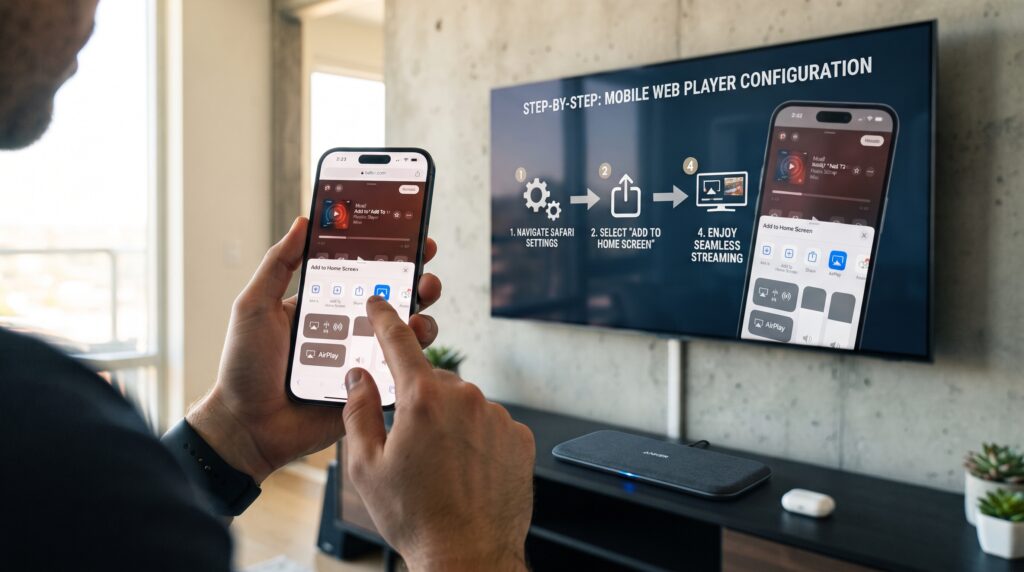
Step 4: Add the Web Player to the Home Screen
When the provider-confirmed page works correctly, tap Safari’s Share button and choose Add to Home Screen if the option appears. Review the displayed name and domain, then add the shortcut. This creates a convenient icon but does not convert the website into an App Store application.
Step 5: Sign In and Verify Account Details
Enter the exact username or email and password supplied for the account. If login fails, check spaces, capitalization, automatic date and time, plan status, and allowed connections before resetting anything. The Apollo Group TV login guide can help distinguish credential errors from application problems.
Step 6: Test Playback and Display Controls
Use the provider’s Apollo Group TV channel list information to understand expected service categories, while remembering that availability can change. A missing item can be account-side or source-specific rather than an iPhone fault. Apollo Group TV for iPhone troubleshooting works best when the affected item and time are recorded accurately.
Step 7: Configure AirPlay When Supported
Apple’s official AirPlay instructions for iPhone confirm the same-network requirement and explain Control Center mirroring. Keep both devices updated and near a reliable access point. Apollo Group TV for iPhone AirPlay performance depends on the player, receiving device, Wi-Fi quality, and content support.
iPhone App vs. Safari Web Player
An iPhone app may provide stronger full-screen controls and easier Home Screen access, while Safari avoids installing another application. The best option depends on verified availability, compatibility, and the features supported by the account. Compare both methods before choosing a default Apollo Group TV for iPhone setup.
| Feature | Compatible iPhone app | Safari web player |
| Installation | App Store download | No separate installation |
| Updates | Managed through App Store | Provider updates the website |
| Home Screen access | Automatic icon | Optional added shortcut |
| Login persistence | App-dependent | Cookie and privacy-setting dependent |
| AirPlay support | App-dependent | Browser and player dependent |
| Storage use | Uses app storage and cache | Uses Safari website data |
| Best choice | Verified app with useful controls | Confirmed web access without an app |
How to Use AirPlay From iPhone
AirPlay can move supported video from the iPhone to a larger compatible screen without installing the service separately on that television. Both devices should use the same Wi-Fi network, remain updated, and have AirPlay enabled. Apollo Group TV for iPhone may display a direct AirPlay icon or require Control Center Screen Mirroring.
AirPlay Quick Steps
- Connect the iPhone and receiving device to the same private Wi-Fi network.
- Open the verified app or Safari web player and begin supported playback.
- Tap the AirPlay icon, or open Control Center and choose Screen Mirroring.
- Select the correct Apple TV, smart TV, or Mac from the list.
- Enter the displayed AirPlay code if the television requests one.
- Stop AirPlay or mirroring when the viewing session ends.
Why AirPlay May Show a Black Screen
Use the player’s supported casting option, an updated compatible receiving device, or direct iPhone viewing. Test another authorized item because some players or streams may restrict mirroring. Avoid random mirroring profiles or tools that request broad screen and network access.
Best iPhone Settings for Smooth Playback
Install stable iOS updates, keep sufficient free storage, and close applications performing large downloads. Prefer reliable Wi-Fi, or check Settings > Cellular to confirm the selected app or Safari can use mobile data while monitoring plan limits. Apollo Group TV for iPhone playback can stutter when signal strength is weak, Low Data Mode restricts activity, or background traffic competes for bandwidth.
Safari Settings That Affect Streaming
Content blockers, disabled JavaScript, strict cookie settings, Private Browsing, and corrupted website data can interrupt a web player. Test the verified site in a normal Safari tab and temporarily disable only the blocker affecting that domain. Avoid weakening security settings for unrelated websites.
How to Fix Apollo Group TV for iPhone Problems
| Problem | Likely cause | First safe fix |
| App not found | Listing unavailable or wrong search term | Verify the supported app or use the confirmed web player |
| Login rejected | Typo, inactive plan, or connection limit | Recheck credentials and account status |
| Safari login loop | Blocked cookies or stale website data | Test a normal tab and clear only relevant site data |
| Video will not start | Player, browser, or source issue | Reload, test another item, and update iOS |
| Constant buffering | Weak Wi-Fi or network congestion | Move closer, pause downloads, and restart the router |
| No sound | Muted output or wrong AirPlay destination | Check volume, Control Center, and selected device |
| AirPlay device missing | Different networks or receiving disabled | Join the same Wi-Fi and enable AirPlay |
| Black screen on TV | Mirroring limitation or outdated device | Test direct playback and update both devices |
Fix Login Errors
Type the credentials manually to avoid invisible spaces from copying. Confirm the plan is active, automatic date and time are enabled, and the account has not reached its supported connection limit. Apollo Group TV for iPhone cannot correct an expired password or an account-side restriction.
Fix Buffering and Freezing
Pause other downloads, restart the router, and move the iPhone closer to the access point. Compare 5 GHz Wi-Fi with another trusted home-network band and test whether other streaming apps also buffer. If every app struggles, the network is more likely responsible than Apollo Group TV for iPhone.
Fix Safari Blank Pages or Crashes
Update iOS, close unnecessary tabs, and restart the device. Clear relevant website data when a normal reload does not work, understanding that Safari will remove saved login sessions. Test the provider-confirmed page again without unrelated extensions or blockers.
If Safari fails on many trusted websites, the problem is broader than the streaming service. Check network restrictions, Screen Time web-content settings, available storage, and Apple system status. Apollo Group TV for iPhone web access depends on Safari functioning normally.
How to Protect Your iPhone and Account
Use a strong iPhone passcode, Face ID or Touch ID when supported, and a unique password for the service account. Keep the Apple Account password private and enable Apple’s normal account protections. Apollo Group TV for iPhone setup should never require an Apple verification code outside Apple’s own prompt.
Common Apollo Group TV for iPhone Mistakes
- Downloading an APK: Android packages cannot install as iPhone applications.
- Trusting a similarly named app: Verify the App Store developer and support information.
- Installing a configuration profile: Do not approve unexplained profiles from download pages.
- Using an imitation login page: Check the complete domain before entering credentials.
- Confusing two subscriptions: A player purchase and service plan can be separate charges.
- Clearing all data too early: Start with reloads, updates, and targeted website-data removal.
- Using guest Wi-Fi for AirPlay: Isolated networks may block device discovery.
- Sharing account screenshots: Images can reveal usernames, plan details, and support codes.
Apollo Group TV for iPhone Case Study
After signing in again, Apollo Group TV for iPhone playback worked and a verified Home Screen shortcut was created. The user then tested AirPlay, confirmed both devices used the same private Wi-Fi, and selected the television through the player. No APK, unknown profile, or third-party mirroring utility was needed.
Frequently Asked Questions
Is There an Apollo Group TV for iPhone App?
App availability can change, so search the App Store and confirm the developer against current provider instructions. Do not assume the first similarly named result is authentic. Use the provider-confirmed Safari web player when no compatible verified app is available.
Can I Watch Through Safari?
Yes, when the provider supplies a compatible web player and the account supports it. Use the confirmed domain and allow only the browser features required for playback. Apollo Group TV for iPhone Safari access may need cookies and JavaScript to maintain a login session.
Does AirPlay Work With Apollo Group TV for iPhone?
AirPlay can work when the player and selected content support it. Keep the iPhone and receiving device on the same Wi-Fi network and update both devices. Some playback may restrict mirroring, so test direct AirPlay from the player when available.
Is an iPhone Player Subscription the Same as Service Access?
Not necessarily, because some player applications charge separately for their interface or premium features. The streaming-service plan and player purchase can be independent. Read App Store and provider payment details before paying.
Final Verdict
Apollo Group TV for iPhone works best through a verified App Store application or a provider-confirmed Safari web player. Users should avoid Android APKs, unknown configuration profiles, imitation login pages, and unverified mirroring utilities. Current iOS software, accurate credentials, stable Wi-Fi, and targeted troubleshooting solve many common problems.
AirPlay adds a useful larger-screen option when the player and receiving device support it. Keep both devices on the same network, use direct player controls where possible, and treat a black screen as a compatibility or connection issue rather than a reason to bypass security. Following these seven methods creates a safer and more reliable Apollo Group TV for iPhone setup.
Key Takeaways
- Android APK files cannot be installed on iOS.
- Search the App Store and verify the developer before downloading an app.
- Use only the provider-confirmed Safari web player and login domain.
- Add a verified web page to the Home Screen for convenient access.
- Keep AirPlay devices updated and connected to the same Wi-Fi network.
- Troubleshoot the account, item, device, and network separately.
- Avoid unknown profiles, converters, and remote activation offers.