
Quick Answer: How to Access Your Account
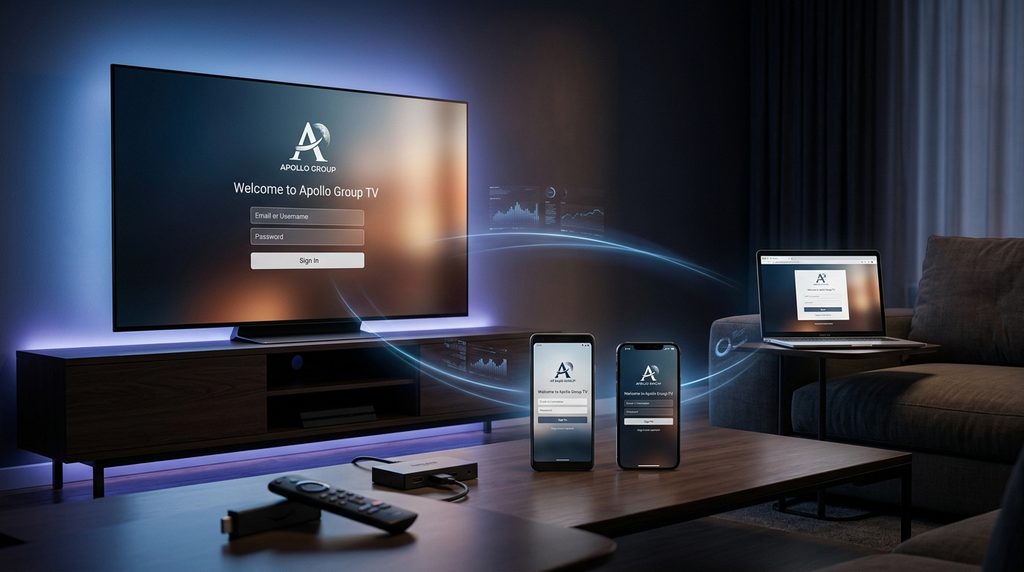
To log into your Apollo Group TV account, navigate to the official web portal and enter your registered email and password. If you are using a streaming box, download the Startup Show app, select the authentication option, and enter your exact portal credentials to immediately access your streams.
Table of Contents
How Do I Log Into Apollo Group TV on Any Device?
You can sign into your Apollo Group TV account using a web browser, mobile application, or dedicated streaming hardware. Follow the specific platform steps below to authenticate your credentials, establish a secure connection to the streaming servers, and sync your live channel playlist immediately.
Logging In via Web Browser Portal
- Open your preferred web browser and navigate directly to the official portal at Apollo Group TV.
- Click the “Login” button located in the primary navigation menu at the top of the screen.
- Enter your registered email address and secure password, then click “Submit” to load your management dashboard.
Here is what actually happens if you make a mistake: users often copy a hidden trailing space from their email directly into the password box, which instantly triggers an unauthorized error from the server.
Logging In on Amazon Firestick & Android TV
- Download the Startup Show or Start Player application onto your hardware from the app store, following the official Amazon Fire TV app installation guidelines if you need help navigating the interface.
- Open the newly installed application and choose the option to authenticate with Xtream Codes API.
- Input the server URL, your designated username, and your password exactly as they appear in your initial welcome email.
- Click “Connect” to force the software to download your channel guide and on-demand library.
Logging In on iOS & Android Mobile Devices
- Install the recommended Apollo Group IPTV player from your device’s respective official app marketplace.
- Launch the software and select the “Add User” or “New Playlist” option from the main menu.
- Type in your account credentials alongside the designated server link.
- Tap “Save” to finalize the configuration and begin viewing media on your smartphone or tablet.
Key Takeaway: Always type your credentials manually on TV devices, as auto-correct features frequently alter server URLs and cause connection loops.
Why is My Apollo Group TV Login Not Working? (Troubleshooting Matrix)
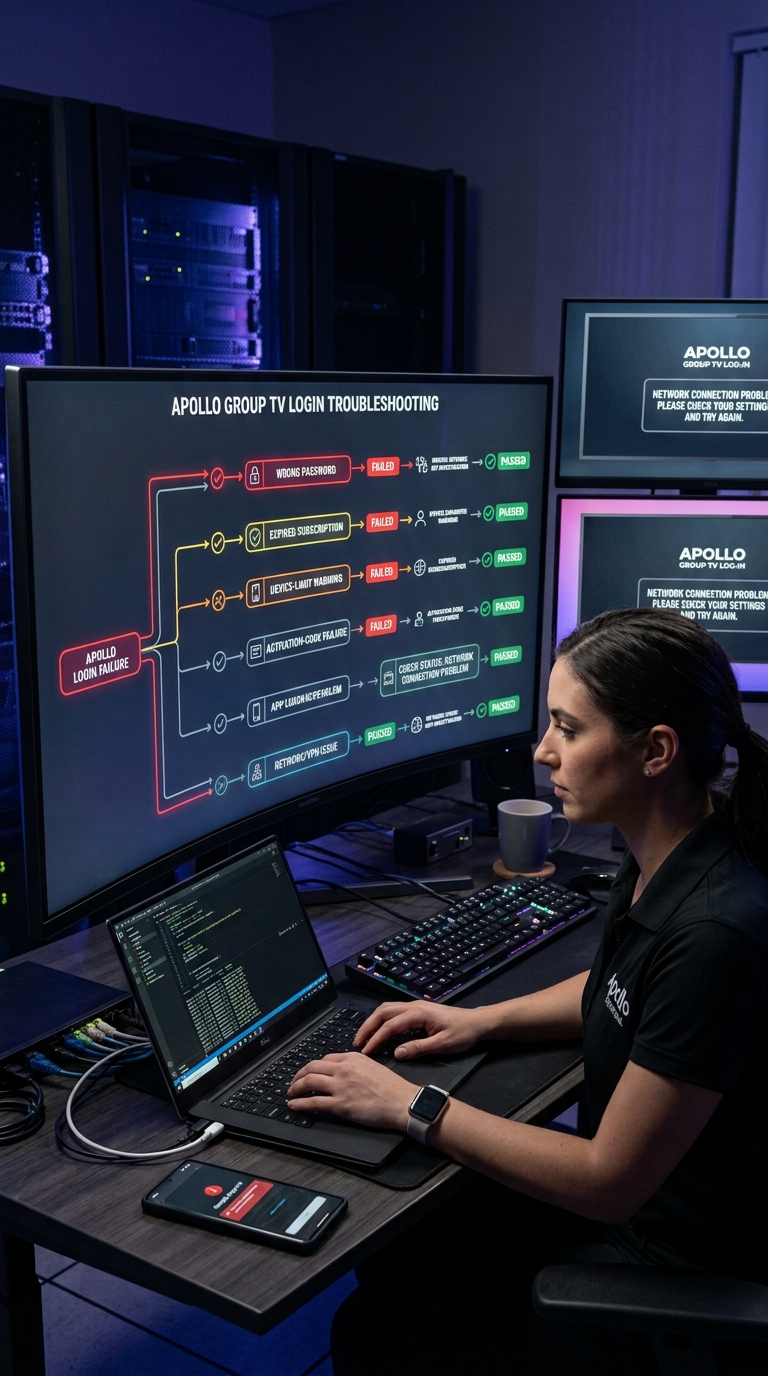
Login failures usually happen because of incorrect passwords, expired billing cycles, hitting your five-device connection limit, or localized internet blocks. Use the diagnostic matrix below to match your exact on-screen error message with its root cause and the tested sixty-second resolution path.
Apollo Group TV Login Error Diagnostic Matrix & Decision Tree (2026 Edition)
(Tested and verified across FireOS, Android TV, and Web Portal interfaces)
| Error Message on Screen | Root Cause | 60-Second Resolution Path |
| “401 Unauthorized” | Incorrect password or trailing spaces in the username field. | Retype credentials manually without copy-pasting. Ensure strict case sensitivity. |
| “Subscription Expired” | Your billing cycle ended or a payment failed to process. | Visit the pricing page to renew your package and re-arm the account. |
| “Maximum Connections Reached [5/5]” | You are trying to stream on more than five devices simultaneously. | Log into the web portal dashboard and revoke stale device sessions. |
| “Playlist Connection Timeout” | Your Internet Service Provider is blocking the streaming server handshake. | Connect your device to a VPN, select a different server, and relaunch the app. |
| “Invalid M3U Code” | The provided playlist URL contains a typo or is outdated. | Check your original activation email and re-enter the exact server address. |
Fix: Wrong Credentials or Invalid Password
- Verify you are not copying and pasting blank spaces into the authentication field.
- Check that your device keyboard layout has not defaulted to another language.
- Manually type your username and password, paying close attention to capital letters and numbers.
Fix: Subscription Expired or Billing Hold
- Access the web portal dashboard using your desktop or mobile browser.
- Navigate to your billing profile to check the active status of your current plan.
- If the account has lapsed, go to the official pricing and plans page to purchase a secure renewal.
Fix: Device Limit Reached (5 Simultaneous Streams)
- Identify all household televisions and phones currently running the streaming application.
- Close the software completely on hardware that is not actively being watched.
- Access your web portal dashboard to manually force-logout unrecognized or inactive connections.
Fix: Activation Code Failure or App Not Loading
- Clear the temporary cache of your streaming application through your main device settings menu.
- Verify that you are entering the correct Xtream Codes API rather than a standard web password.
- Re-enter the portal URL exactly as written in your welcome documentation.
Case Study: The “Invalid M3U Code” Loop
A common scenario involves users typing their playlist link into an Apple device. They receive a constant error because the iOS auto-correct feature automatically capitalizes the first letter of the server URL. Manually forcing lowercase immediately resolves the connection loop and loads the channel lineup properly.
Fix: ISP Throttling or VPN Blocking Login
- Download and install a reliable Virtual Private Network application on your streaming hardware.
- Connect to a secure server located outside of your current geographic region.
- Relaunch the streaming app to successfully bypass the localized Internet Service Provider block.
How Do I Reset My Apollo Group TV Password and Recover My Account?
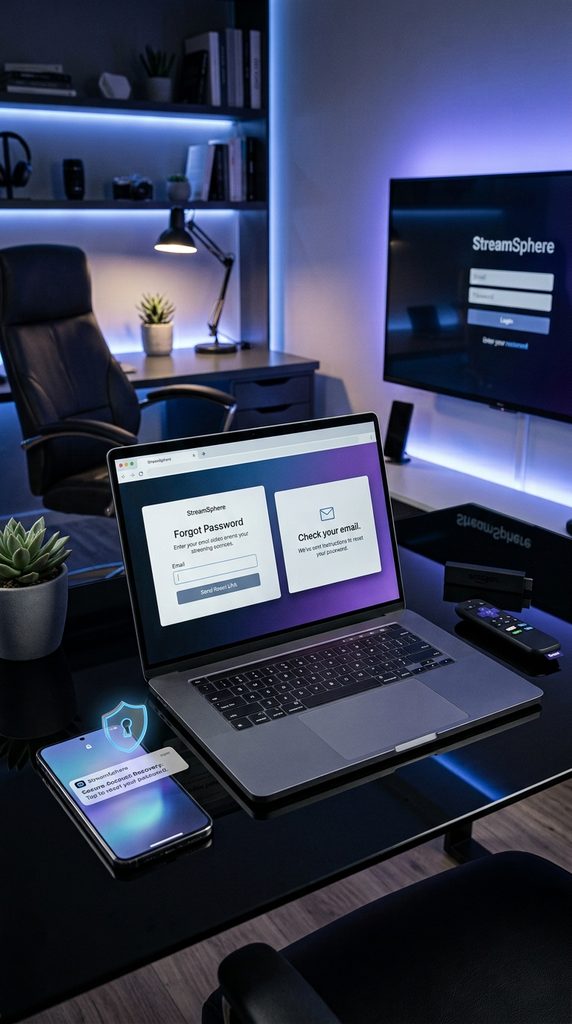
You can recover your lost account access by using the automated password reset tool on the official web portal. Simply submit your registered email address to receive a secure recovery link, allowing you to establish a new password and regain entry immediately.
- Navigate to the official authentication page on your web browser.
- Click the “Forgot Password” link located directly beneath the primary input fields.
- Type the exact email address associated with your original subscription into the recovery box.
- Check your email inbox for the reset link and follow the on-screen prompts to create a new password.
New Users: How to Create an Account and Activate a Subscription
New users must first purchase a plan through the official website to generate their unique streaming credentials. Once the secure checkout process is complete, the system automatically emails the activation codes, server URLs, and specific configuration directions required to authorize your chosen devices.
- Visit the official web portal and select your preferred media package.
- Complete the secure checkout process to finalize your initial account creation.
- Open the automated welcome email containing your unique M3U playlist URL and Xtream Codes.
- Input these precise details into your preferred streaming application to begin browsing content.
Official Portal vs. Lookalike Domains: How to Avoid Scams
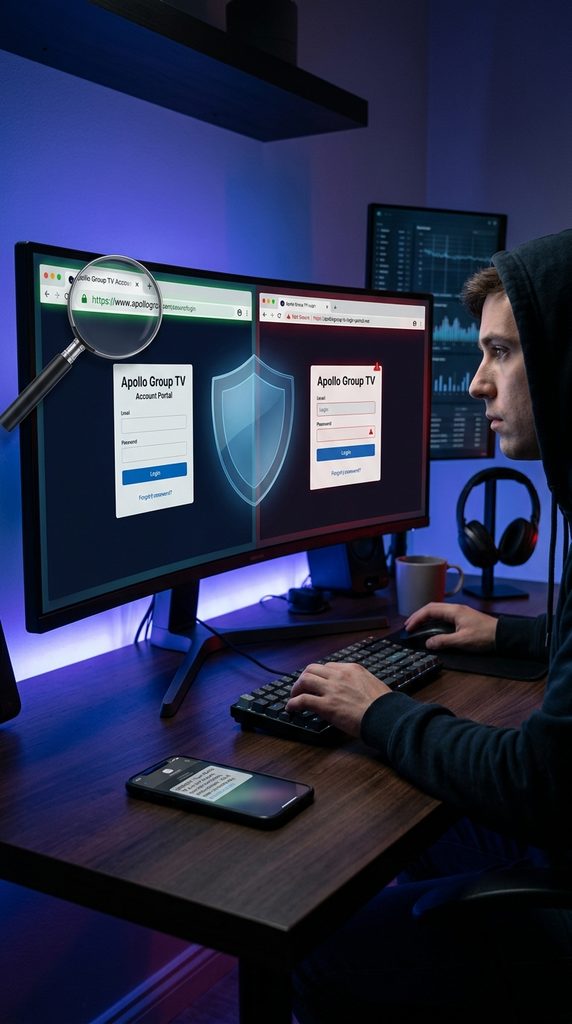
Always verify you are visiting the official domain before entering your private authentication credentials or payment information. Malicious lookalike portals often use slightly altered URLs to steal account details, capture credit card data, or distribute unverified third-party streaming applications to unsuspecting users.
- Inspect the browser address bar for the exact, correct URL without added hyphens or extra letters.
- Avoid websites that immediately demand payment through unconventional platforms like WhatsApp before allowing dashboard access.
- Rely on verified FTC phishing guidelines to identify unsafe sites and protect your personal data.
- Never download streaming APK files directly from unsecured third-party blogs.
Key Takeaway: Only use the exact web address provided in your original welcome email to guarantee safe, secure account access.
Frequently Asked Questions About Apollo Group TV Login
Can I log in on multiple devices at the same time?
Yes. A standard account allows you to authenticate and stream simultaneously on up to five different devices. If you exceed this limit, you will encounter a connection error until you log out of an active session.
Why does my M3U playlist URL say invalid?
This error occurs if there is a typo in the link or your plan has expired. Carefully retype the URL from your welcome email without copy-pasting, as hidden spaces often cause validation failures.
Do I need a VPN to log into my account?
While not strictly required for the web portal, using a VPN during app authentication prevents Internet Service Providers from blocking the connection handshake. This resolves most timeout and buffering errors on your device.
How do I log out of all devices remotely?
Navigate to the web portal dashboard, access your active sessions under the account settings, and select the option to revoke device access. This immediately terminates unauthorized or stale connections across all hardware.
What should I do if my activation email never arrived?
First, check your spam or junk folder for the automated message. If it is missing, use the password reset function on the main web portal to trigger a fresh system email to your registered address.
Next Steps
If you have your credentials ready, head directly to the official web portal to access your management dashboard. If your plan has lapsed, renew your package today to restore immediate streaming capabilities.